
Flexyble Windows
Over the years I have seen several utilities that help enhance the look and feel of Windows. The most famous is TweakUI which is currently available for Windows 9x, NT 4 and 2000. Microsoft developed this plug-in to help you enhance the basic Windows environment. However TweakUI (reviewed in it@tt, 24 October 2000) and others of its ilk were software-oriented. They did little to no hardware optimization.
 If
you wanted to enhance your complete Windows, then you had to often take
recourse to application-specific tool boxes. Most tweakers have been shareware.
With limited options in the trial version. And all of them timed out at
the end of their demo period. When they expired, they would revert your
settings to the (presumably useless) defaults.
If
you wanted to enhance your complete Windows, then you had to often take
recourse to application-specific tool boxes. Most tweakers have been shareware.
With limited options in the trial version. And all of them timed out at
the end of their demo period. When they expired, they would revert your
settings to the (presumably useless) defaults.
Well, along comes Flexy. This takes a Swiss Knife approach. And to make changes to Windows aspects that (so far) required either third-party plug-ins or heavy-duty Registry editing. The product is now available as a 20-day demo. However, a bit of diligent searching turned up links where you can download an older, but free copy. Download Flexy 1.2 (374 kB, Windows 9x, free) from http://cert.unisa.it/pub/PC/SAC/utilmisc/flexy120.zip. However, if you have Windows ME or want the latest then get Flexy 1.31 (558 kB, Windows 9x/ME, shareware, $20) from http://flexy.mastak.com/flexy131.zip.
Flexy supports Win 9x and ME. And covers six aspects -- Appearance, Performance, General, Internet, Security and Network of the Windows interface. The application uses a pretty basic control panel with between 2-4 tabs to micro-configure each zone.
Appearance covers the visual aspects of Windows. And allows you to configure Start, Desktop, Effects and Misc. Start Menu lets you modify what items are displayed and how the various menus behave. Desktop lets you rename the system folders. You can also remove the small grey arrow that indicates a shortcut.
Misc should actually have been labelled "Visual" since this lets you to configure colours for error screens and icons. I especially like the two-paned Explorer option and the Save Window size position. The first means that double-clicking the My Computer icon on the desktop opens a Windows Explorer with the folder bar visible. Saving size means that when you close an application, its coordinates and position are saved for the next time.
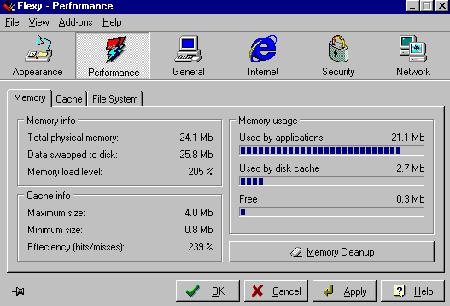
Performance is very interesting because you can optimize the memory, cache and file system with handy slider controls. You can clean-up memory with one click. And there are also pre-defined cache settings for low- or high-load, multimedia, CD writing and low memory (under 16 MB) configurations. What I really like about almost all options is the handy pop-up text that explains what a particular tweak does.
General covers templates, boot options and system. In the first, you can define which file templates will be available when you right-click on the desktop. The second controls boot options like the option to load a previous version of DOS. In system you can change the Windows registration information. Configure whether you want a CD to auto run or not, and even cool down the CPU when the latter is not being used.
Internet gives the connection details including data transfer and total throughput. You can also see the list of available profiles (listed as RAS). I like the IE tweaks. You can fiddle around with basic settings and also change the browser's title.
Security lets you define what drives are visible and which dialogs can a user access. You can also disable the Registry Editor, DOS access and even Control Panel. You can also restrict access to the printer.
The Network will be excellent for cyber cafes or user who need to share a PC with others. You can control file and printer sharing, and even include a legal notice before the login commences.
There are three add-ins to give single-click access to files and services that load at Windows Startup, available application un-installers, and System Folders. You can change defaults or even add your own. Flexy also helps you change the My Documents default on C drive to any other folder you use for the same purpose. You can also set a global password that controls access to Flexy.
G
Menon
[email protected]
Other Articles
ChiefChat
| Mailbox
| NerdWord
| ProductPreview
| SiteScan
| Techtalk
| Tips&Tweaks
VirusWatch
| Webware