
Introduction to Making Interactive Flicks
"Actions Speak Louder than Words" is so true. In today’s wired Web world, where interactivity is everything, who wants to hang around dull clicksville. And those plain vanilla pages I find so visually boring too. Flash has been developed to help you develop rich creative media for the Web. And provide your audience with an enriched, intriguing experience. If "Interactivity is the core competency of all media and the same applies to the web ... which can differentiates one from another," let's get Interactive.
In an interactive Flash movie, your audience uses the keyboard, the mouse, or both to jump to different parts of a movie, move objects, enter information in forms, and perform many other interactive operations. You create interactive movies by setting up actions—sets of instructions written in ActionScript that run when a specific event occurs. The events that can trigger an action are either the play head reaching a frame, or the user clicking a button or pressing keys on the keyboard. You can insert actions without having to write any ActionScript; if you're proficient in ActionScript, you can write your own script.
ActionScript is an object-oriented programming language. In object-oriented scripting, you organize information by arranging it into groups called classes. You can create multiple instances of a class, called objects, to use in your scripts. You can use ActionScript's predefined classes and create your own. Flash uses the ActionScript scripting language to add interactivity to a movie. Objects in ActionScript can contain data or they can be graphically represented on the Stage as movie clips.
ActionScript can be created and edited in Action panel, in two different editing mode. In Normal Mode you can write actions using parameter (argument) fields that prompt you for the correct arguments. In Expert Mode you can write and edit actions directly in a text box, much like writing script with a text editor.
Assigning actions to Button or Movie clip:
- Select a button or movie clip instance and choose Window > Actions.
- Double-click an action in the Basics Actions category.
- Drag an action from the Basic Actions category on the left to the Actions list on the right side of the panel.
- Click the Add (+) button and choose an action from the pop-up menu.
To display the Parameters pane, click the triangle in the lower right corner of the Actions panel. Select the action and enter new values in the Parameters text boxes to change parameters of existing actions.
Setting
mouse event options:
Assigning an action to a button also automatically assigns a Mouse Event
action to the button to handle, or manage, the action. Each handler begins
with the word on, followed by the event to which the handler responds.
For example:
on (release)
on (keyPress "<Space>")
on (rollOver)
The release parameter indicates that the user pressed and released the
mouse button. You can specify which mouse events trigger a button action
using the Actions panel.
Assigning
actions to frames:
To make a movie do something when it reaches a key frame, you assign a
frame action to the key frame. For example, to create a loop within a
movie, you might add a frame action to Frame 20 that specifies "go
to Frame 10 and play."
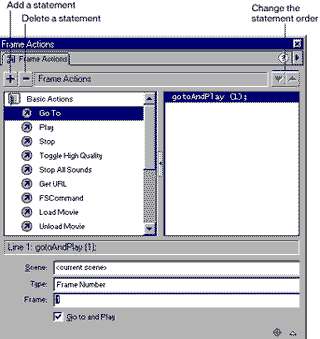
Select
a key frame in the Timeline and choose Window > Actions.
Double-click an action in the Basic Actions category in the Toolbox list.
Drag an action from the Toolbox list on the left to the Actions list on
the right side of the panel.
Click the Add (+) button, and choose a statement from the pop-up menu.
To display the Parameters pane, click the triangle in the lower right
corner of the Actions panel. Select the action and enter new values in
the Parameters text boxes to change parameters of existing actions.
 Using
basic actions for navigation and interaction:
Using
basic actions for navigation and interaction:
The basic actions in the Actions panel let you control navigation and
user interaction in a movie by selecting actions and having Flash write
the ActionScript for you. The basic actions include the following:
The Go To action jumps to a frame or scene.
The Play and Stop actions play and stop movies.
The Stop All Sounds action stops all sounds in the movie.
The Get URL action jumps to a different URL.
The FSCommand action controls the Flash Player that's playing a movie.
The Load Movie and Unload Movie actions load and unload additional movies.
The Tell Target action controls other movies and movie clips.
The If Frame Is Loaded action checks whether a frame is loaded.
The On Mouse Event action assigns a mouse event or keyboard key that triggers
an action.
Once you've assigned an action, it's recommended that you test whether it works, using the Control > Test Movie command.
Readers who have missed the previous columns can check past Product Guides in the Archives section of IT@TT Onlineat www.careermosaicindia.com/itattt.
Vaishali
Singh
[email protected]
Other Articles
CareerCorner
| ChiefChat
| Mailbox
| ProductGuide
|
SiteScan
Techtalk
|
Tips
| VirusWatch
| Webware
Tribute to Dewang Mehta